


Written by Francesco and Marc Demar
Tired of showing your blurred virtual background, your unmade bed or the dog walking behind you while in a Zoom meeting?
Well, there is an amazing way to avoid that thanks to the Metaverse!
You may have seen Artur Sychov, the CEO of Somnium Space, in the shape of a lizard or a futuristic lighting Tron suit speaking in virtual conferences, events, or giving lectures.

It is no surprise that Somnium Space is bombarded with questions about this. Many people wonder how it is possible that Artur, sporting a 3d NFT Avatar that mimics every movement thanks to full body tracking, can communicate directly from inside the Metaverse.
In this step by step guide we will explain how it is done so you can jump into VR and join meetings with your favorite avatar, just like Artur. It is a perfect way to show the world that the Metaverse is not some fantasy or dream, but already exists today. And by joining from inside Somnium, you demonstrate that Somnium is an open system, accessible to everyone and supporting stunning cross-reality experiences.
Let’s dive into it!
First Things First
It is beyond the scope of this article to have a detailed explanation on how to join Somnium Space in VR mode. Instead we’ll suffice with a brief introduction.
At the heart of your VR adventures is a powerful (gaming) laptop or PC, equipped with a strong GPU (graphics card) and plenty of RAM. For more information check the #vr-hardware channel on Somnium Space’s Discord. This piece of equipment is crucial for a smooth experience and being to able to record and stream your VR adventures.
Next comes the VR headset, which should work with Steam (we’ll come to that in a moment). There is a range of products on the market. Most used ones are Oculus (Rift/Rift S/Quest/Quest 2), Valve Index, HTC Vive. Again, take some time to research what headset would suit you most and do not hesitate to reach out to the Somnium community for help.
Next comes the software for Somnium Space, Steam, OBS and OBS Virtual Camera Plugin (for streaming your adventures to video conferencing software) and any VR headset dependent software (such as the Oculus App for the Oculus Quest headset).
The setup looks like this:

Required Software
To summarize, here’s the list with software that you need on your laptop/PC in order to use Somnium’s VR camera for your video meetings:
- Somnium Space Launcher
- OBS Studio + OBS Virtual Camera plugin
- Steam and Steam VR
- Oculus App (optional, only if you have an Oculus Quest as your VR Headset)
1 – For downloading the Somnium Space Launcher to your pc and accessing Somnium, refer to this guide. Note that the PC launcher is only for Windows. Mac and Apple devices are not yet supported.
After you have downloaded and installed Somnium, move on to the next steps.
2 – Download and install OBS Studio from here and, if it’s not integrated automatically, download the Virtual Camera plugin for OBS from here. You will need that to stream Somnium Space in your video meeting app.
3 – Install Steam VR from here. Note that if not yet installed, you will be prompted to install Steam itself first. These steps are necessary to use any VR app on your PC.
In case your headset needs additional software, such as the Oculus App for the Oculus headset, install that as well.
See also this article and this video for more information.
Dive Into Somnium Space VR
Once everything in place, it’s time to join Somnium Space.
Power up and connect your VR headset and launch any required software, such as the Oculus App in case of the Oculus headset. In case you have an Oculus Quest make sure to activate the Link connection.
Once your headset has powered up and you’re in, start Steam VR. This will transport you to the Steam VR Home.

Now fire up the Somnium Launcher and start Somnium in VR mode by clicking on “VR”.
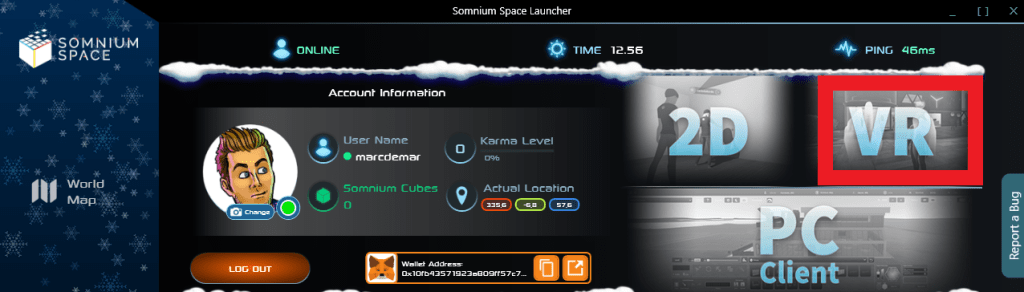
Put your headset back on and wait while Somnium is loading. If everything is properly set up, you will find yourself in VR shortly. You may spawn at the central square or somewhere else, depending on where you logged out the last time in Somnium.
When you are in Somnium in VR, do the following:
- Open your in-world Tablet by using the appropriate controller button.
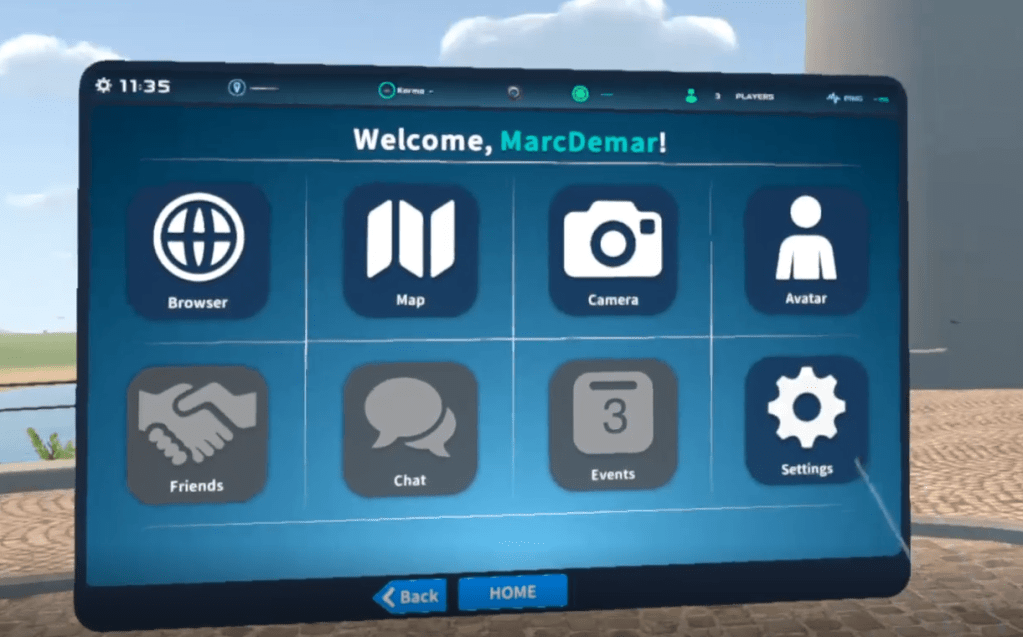
- Go to Camera
- On the top right go to ⚙️ Settings

- Go to Live Streaming
- Enable Display on main PC Screen
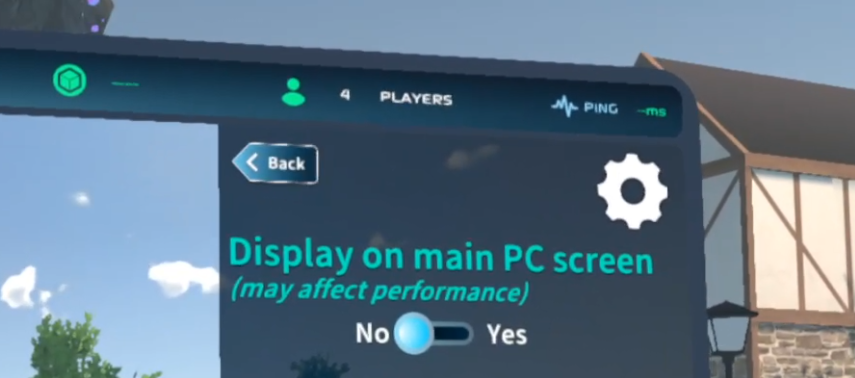
When enabled, whatever the tablet is filming will be displayed full screen on your pc. Verify this by lifting your headset for a moment.
If you always want to display your camera in selfie mode you have to keep grabbing the tablet when you move around the map or you may want to enable the Make Tablet Follow Player option.
To make the tablet follow you automatically, follow the steps below:
- Go to Tablet Home
- Go to Settings
- Scroll down to Make Tablet Follow Player and check that option
Launching OBS
Now let’s go back and connect Somnium Space to your Video Meeting from your PC.
- Launch OBS and open the Virtual Camera. One way to achieve this is by selecting VirtualCam from the Tools menu

- Start the VirtualCam

- Open your program (Zoom, Hangouts, Skype, Teams, etc.) and choose OBS-Virtual Camera as your webcam and voila OBS will stream anything that is displayed on your screen right into your video meeting. Be sure to minimize all the windows and just leave Somnium Space open so that only that will be displayed to meeting participants.
Once OBS and your meeting has been set up, go back to VR and impress the participants!
Remember that while you’re using the VR camera for this, you won’t be able to see the other participants in the meeting but just hear them from your headset’s headphones. Enjoy the Metaverse and be ready to blow people’s mind at your next meeting!
PS: Don’t tell them and surprise them the last minute 😉



Leave a Reply